Media & Files
Media lives in two places: inline in a page, as blocks, and on the canvas, as cards. Drag a file into a page, or paste from the clipboard:
- Images — inline; hover or select one for its outline and drag any corner to resize. Right-click for Fit width and Original size (double-clicking a corner does the same). Images also live inside table cells.
- Video — an inline player with a compact transport bar: play, the timecode (click it to show frames), a scrub line with the clip’s note markers, and a glyph that opens the review studio. Skim audio, press-and-hold fast forward / rewind, and the full transport keys while the video has the caret. Notes are interchangeable with QCView.
- PDF — paged inline with prev / next; open full-frame to read, zoom and draw on its pages (see Drawing & Video). The PDF file is never modified.
- Photoshop, HEIC, camera RAW and Radiance HDR — a rendered preview that behaves like an image, with a small pill naming the format. The original stays where it is, untouched: Reveal, Open in ufb and Copy path all point at it. When the source changes the pill reads “changed”; right-click for Refresh preview. Photoshop files need the composite Photoshop saves with “Maximize Compatibility” (its default); without it the file lands as an attachment. HEIC and RAW previews are macOS-only for now; Photoshop and HDR work everywhere. EXR is deliberately a plain attachment: a multi-layer, scene-referred file has no single honest preview.
- Illustrator — an
.aisaved with PDF compatibility (Illustrator’s default) is a PDF to minNotes: it pages inline and opens full-frame. - Other files — an attachment chip; double-click to reveal in Finder / Explorer.
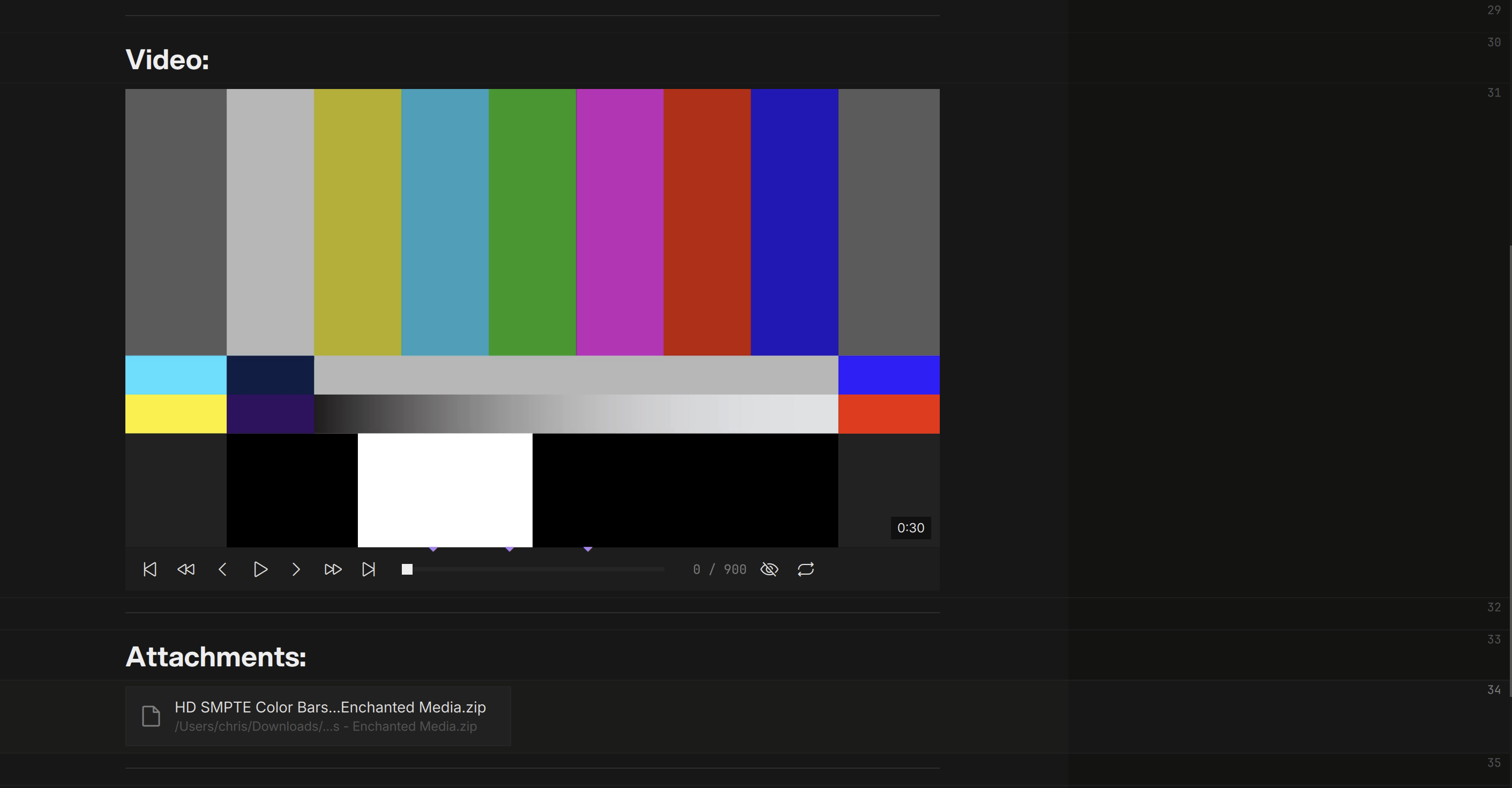
Dropped on the canvas the same files become cards — a video that plays in place, a PDF that pages in place, folders and bookmarks too. See The Canvas.
Where Files Live
When you paste or drop a local file, minNotes copies it into the file’s own media folder (.minnotes/ beside the file) — pasted screenshots can’t vanish when a capture app cleans its temp files. Files on network shares stay referenced in place: no duplicate copies of production media.
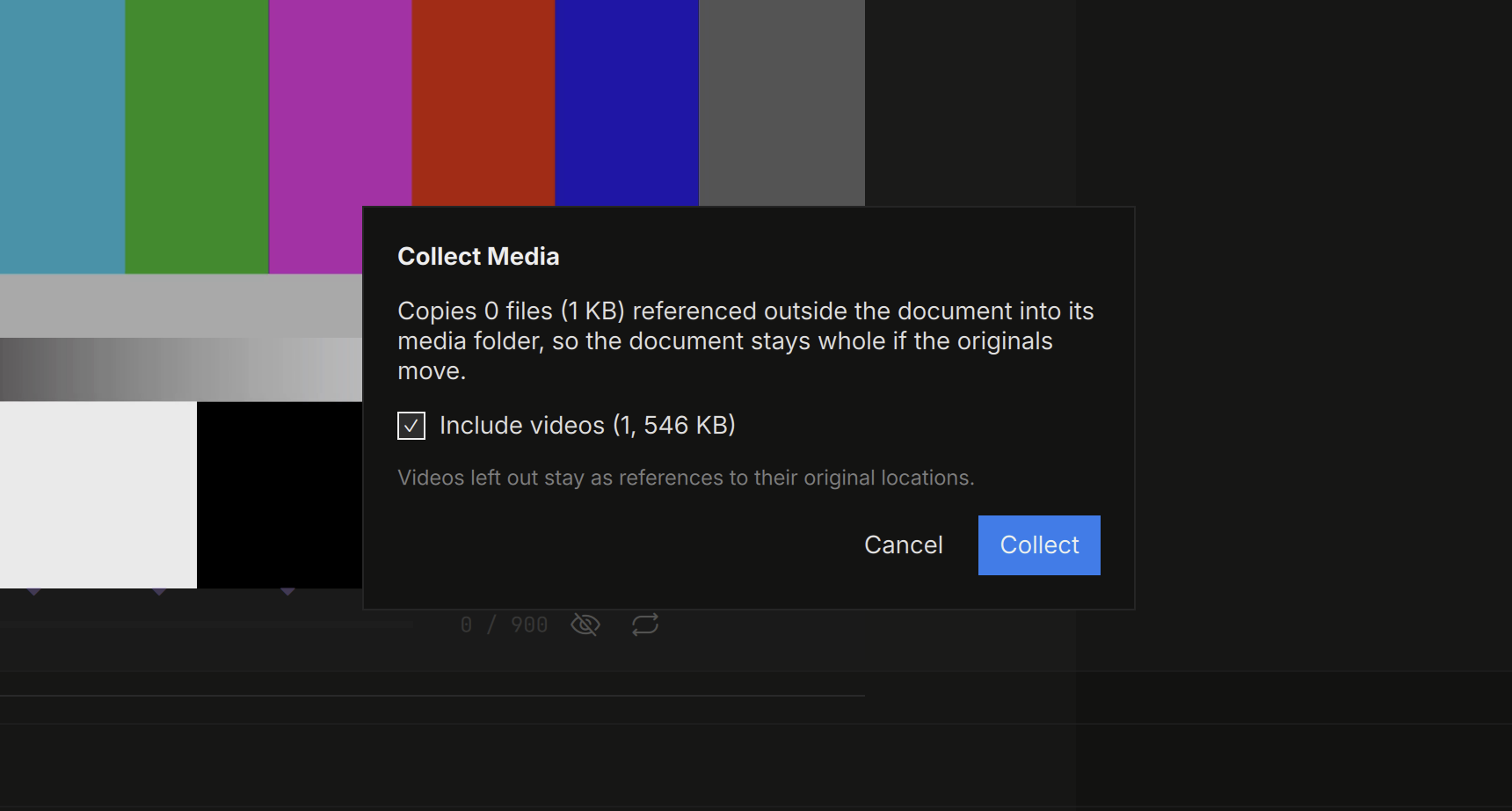
Document ▸ Reveal Media Folder opens the media folder. Document ▸ Collect Media… pulls every externally referenced file into it (videos opt-in), making the file self-contained — one undo step, and the file saves itself after.
Cross-OS Paths
Referenced media is stored as an OS-neutral reference, so a file written on macOS resolves its NAS paths on Windows and back. Teach minNotes your share roots once under File ▸ Path Mappings…:
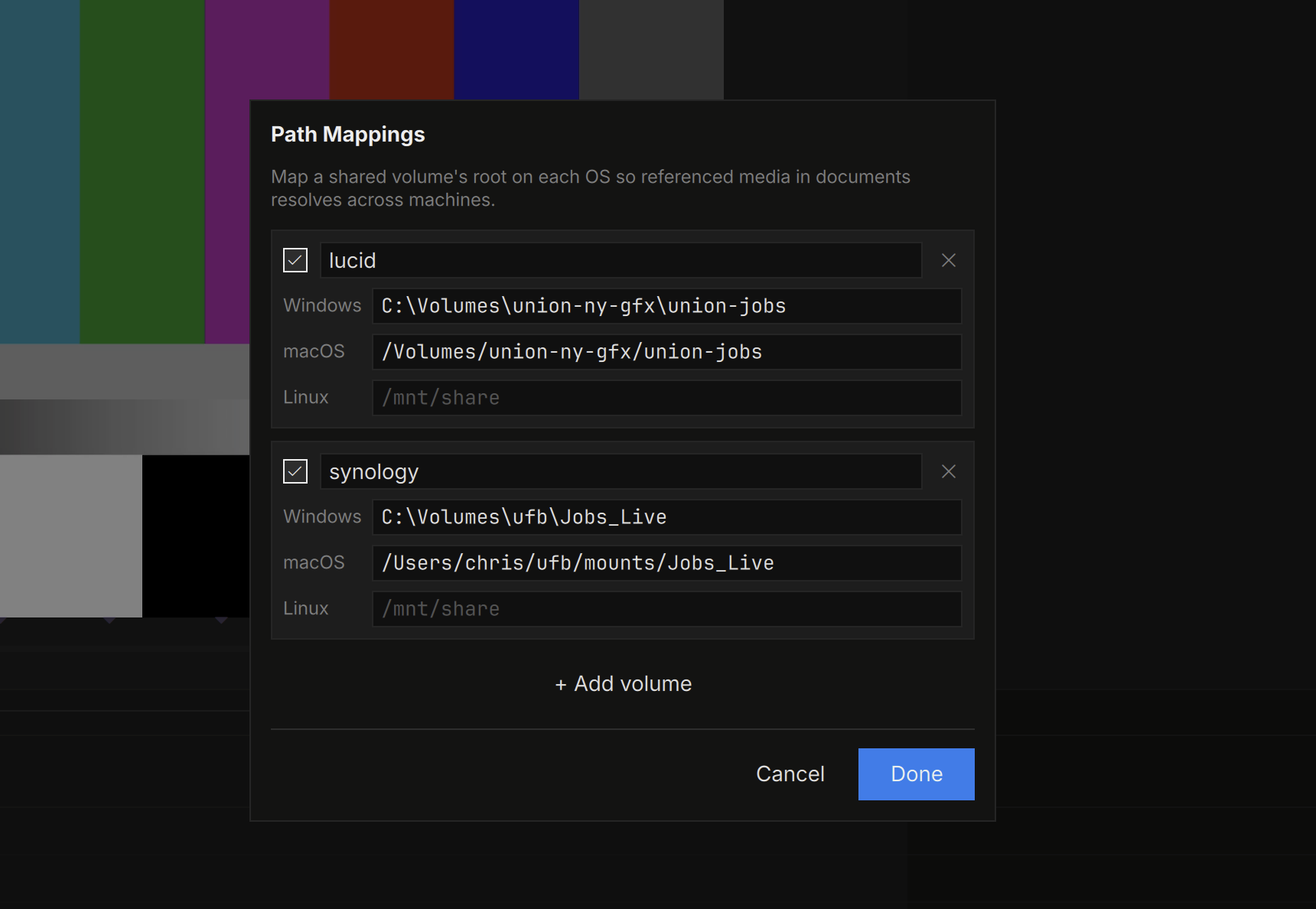
| macOS | Windows |
|---|---|
/Volumes/projects | P: or \\server\projects |
The same mapping system powers the paths printed on canvas cards and ufb links in exports.