The Canvas
Every file is a canvas. Pages are cards on it, and so is everything you drop: video, PDFs, images, audio, folders, files, links. Pan by dragging with the middle button, by holding Space, or with the hand tool; zoom with ⌘+ / ⌘−, ⌘-wheel, or a pinch; ⌘1 fits everything in the window and ⌘0 returns to 100%. The zoom badge at the right end of the toolbar shows the level and opens a slider.
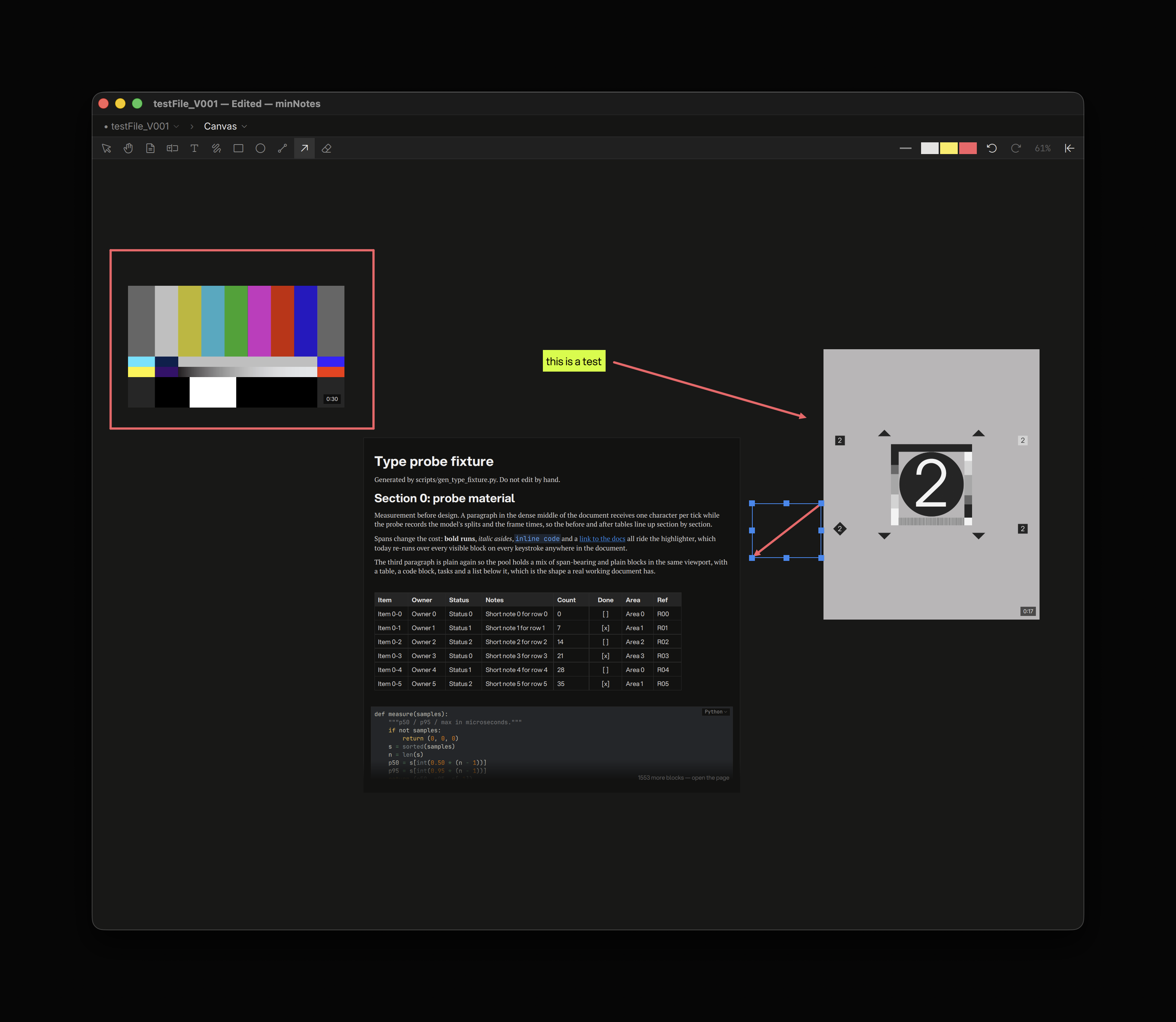
Pages
Double-click a page (or select it and press Return) to open it full-window — the page view, where writing happens. Esc there returns to the canvas with the page selected. The open glyph at the card’s top-right, Open page on its menu and the path bar do the same.
Frames
A frame groups things on the canvas. Select some elements and press ⌘G (or pick Group from the menu): a titled, tinted rectangle wraps them and from then on moves, duplicates, deletes and reorders with them as one. Membership is explicit — ⌘G with one frame among the selection adds the rest to it, Remove from frame on an element’s menu takes it out, ⌘⇧G dissolves the frame and leaves its contents where they are. Dragging a child outward just stretches the frame: a group is elastic and hugs its contents.
The frame tool (F) places frames by hand: click for an empty group, drag for a board — a frame with a fixed size you resize with its handles or snap to an aspect (16:9, 1:1, 9:16, 4:3); a board with an aspect keeps it under the handles. A board clips its contents to its edges, so it reads as a bounded sheet on the open canvas; a group never clips. Double-click a frame (or press Return on it) to rename it in place; the Inspector’s Frame section holds the title, a tint, the group / board choice and the aspect. Drop a file onto any frame and it joins; so does a paste inside one. To move something that is already on the canvas into a frame, drag it there holding ⌘ (Ctrl on Windows): the frame lights up under the pointer and the release joins it. The same ⌘-drag released clear of any frame takes a member out. A plain drag never changes membership — dragging a child outward just stretches its group. In the Layers panel a frame stands out in its tint, with its children threaded under it, and dragging a row into or out of a frame’s block moves it in or out.
A page’s width is its card’s width — drag a side handle and the text reflows. Its height follows its content up to a square; drag a top or bottom handle to pin a height (the card scrolls), double-click the handle or choose Fit height to content to let it grow again. A long page shows its first stretch with a note of how many blocks are below; open the page to read on.
The page tool (N) places a new page where you click, or drag to size it; New page here on the empty-canvas menu does the same.
Media on the canvas
Drop a file, or paste, and it lands where you drop it:
| Dropped | Becomes |
|---|---|
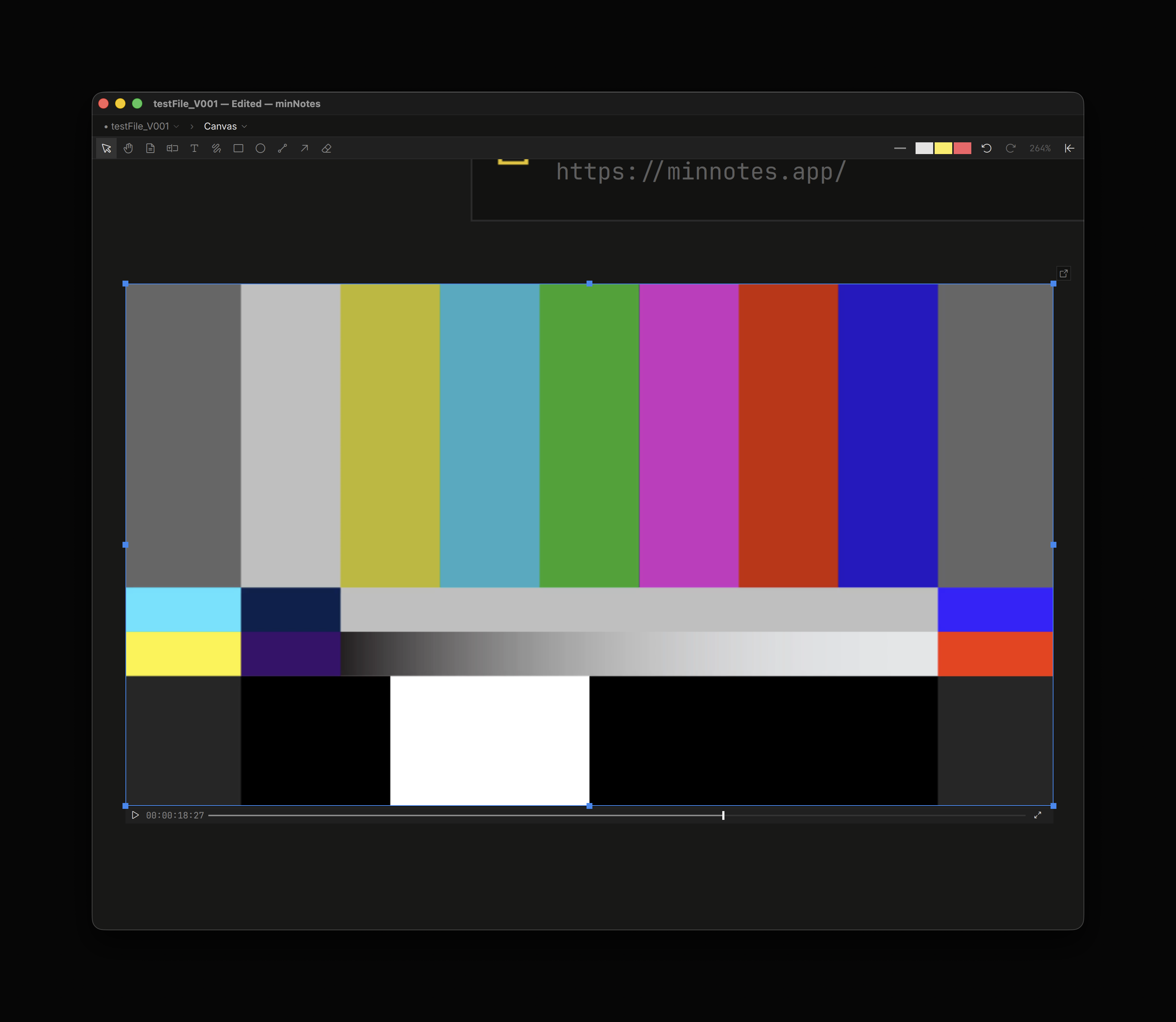
| Video | A poster card. Select it for the play button and scrub line; K plays and pauses it in place, Space or Return previews it in the lightbox with the full transport. Double-click, the open glyph or Open in studio opens the review studio. |
Its first page. Select it to page with the strip under the card or PageUp / PageDown; Space previews it in the lightbox with a pager; double-click or open it full-window to read, zoom and draw on its pages. | |
| Image | The image, at its size up to 480 wide. Drag a corner to resize. Space or a double-click shows it in the lightbox — the picture alone over the window, with ‹ › to step through the file’s media, a PDF’s pager, a video’s transport and ×; Space or Esc closes it. Videos, PDFs and audio preview there too. |
| Photoshop, HEIC, RAW, HDR | A rendered preview card with a format pill; the original stays in place and the card’s Reveal / Open / Copy path point at it. Refresh preview re-renders after the source changes. (Illustrator files are PDFs; EXR stays a file card.) |
| Audio | A card with its duration and a play button. |
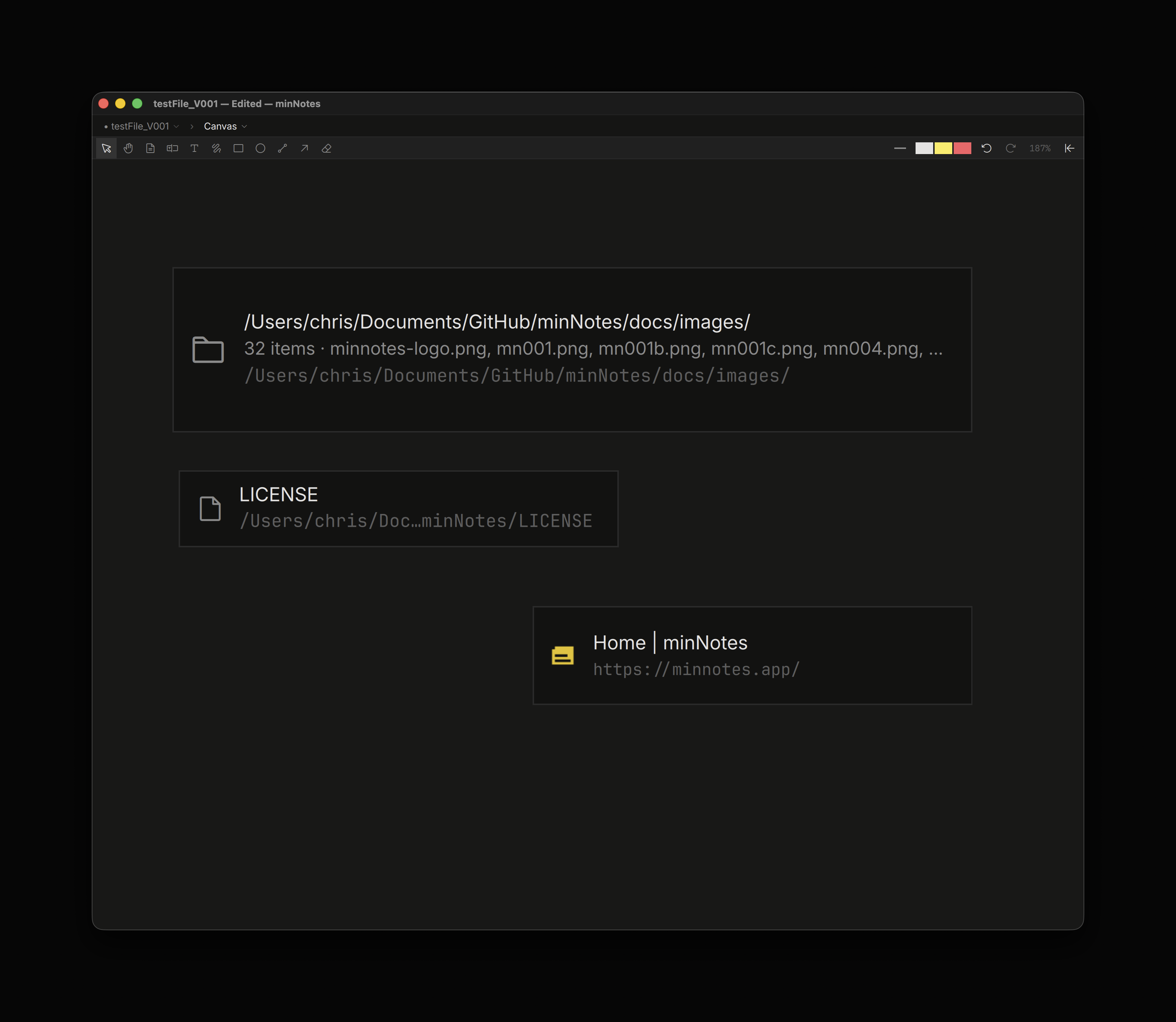
| Folder | A card with the folder’s name, count, first entries and full path. Spread files here lays its files out as cards. A QCView stream folder offers Open as stream. |
| Any other file | A card with its name and full path. |
| A URL | A bookmark card: favicon, the page’s title, the link. Right-click empty canvas for Add link… to type one. |
.mnd / .mnpkg | Its pages copy in as pages, arranged as they were. |
| Markdown, text, code, HTML, Word, spreadsheets | A new page holding the import. |
Evernote .enex, Notion export | One page per note, in a grid. |
Several files at once land in a grid. Every card that stands for a file shows its full path, and its menu offers Reveal in Finder / Explorer, Open in ufb, and Copy path — see Media for where files live.
Selecting and arranging
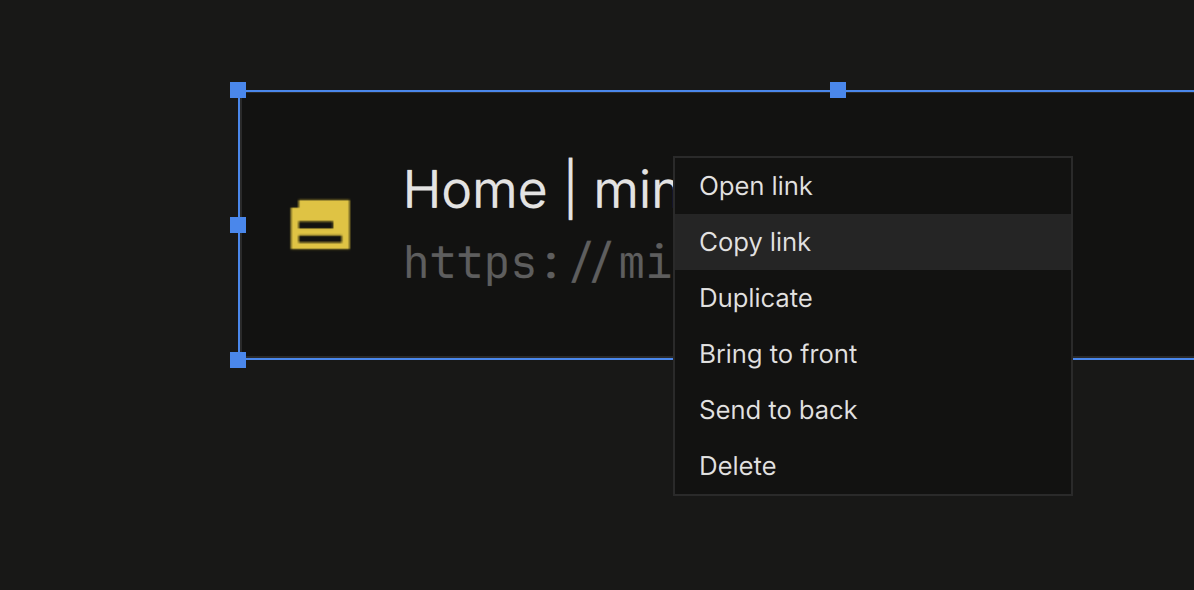
Click selects; drag on empty canvas draws a marquee; Shift-click adds or removes. Drag a selection to move it, the handles to resize (videos keep their aspect), Delete to delete. Right-click for the menu: Open, Duplicate, Bring to front, Send to back, Delete, and the rows that fit the card. Every gesture is one undo step on the canvas’s own history; inside a live page, ⌘Z works on the page.
Layers. Open the Inspector while the canvas is up and its top section lists the stack, front-most first: pages by their title, cards by their file name, text chips by their first line. Ink reads as one row per run of strokes (“Ink · 12”), so a card that sits between two runs shows between them — the list is exactly what the canvas paints. Click a row to select its element (a run selects all of its strokes; a run with only some strokes selected shows a dimmer fill), Shift-click to add, double-click to go live, right-click for the same menu. Drag a row to reorder, or use ⌘] / ⌘[ to step the selection one layer forward or back and ⌥⌘] / ⌥⌘[ for front and back. Each move is one undo step. History sits below the layers.
With a video selected the keyboard is its transport: Space (or K, W, S) plays and pauses, ← / → (or Q / E) step frames, J / L (or A / D) hold to shuttle, Home / End jump, R cycles the review speed, V loops, M mutes. The tool letters wait until the video is deselected. The counter shows timecode; click it to flip every player to frames.
Drawing
The canvas toolbar holds the tools, each on a single key:
| Tool | Key |
|---|---|
| Select / move | V |
| Hand (pan) | H |
| Page | N |
| Text box | T |
| Text, plain (no box) | ⇧T |
| Pen | P |
| Rectangle | R |
| Oval | O |
| Line | L |
| Arrow | A |
| Eraser | E |
The three colour clips at the right end of the toolbar are text, highlight and pen; click one to open the palette for that layer. The pen width button opens a slider. With strokes selected, changing the width or the pen colour restyles them live. Strokes are canvas elements: select, move, duplicate and reorder them like anything else. Esc cancels a stroke in progress, then drops the tool, then clears the selection.
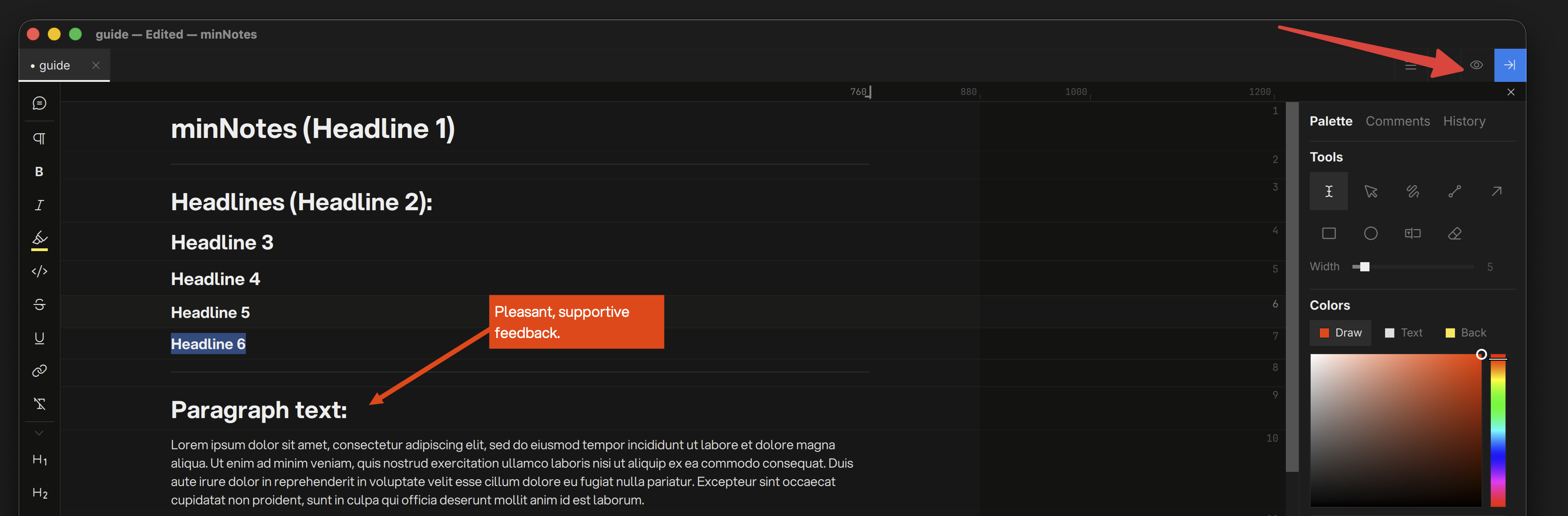
Text boxes take the pen color as their fill with contrasting type; the plain text tool writes in the text color with no box. Both start at the body size; double-click a chip to edit it. A chip fits its text: the box grows as you type. Drag a side handle and the width stays where you put it, the text wraps there and the box grows down to hold it; double-click a side handle (or choose Fit width to text) to let it fit its text again.
Exporting the canvas
Export ▸ Canvas as HTML… writes one self-contained file: the canvas with pan and zoom, and a tab strip — click a page, a video or a PDF and it opens in a tab. Canvas Poster (PNG)… renders the zoomed-out view as an image. See Export.