Export
The Export menu writes the page you are in, in four formats, the whole file as a package, and the whole canvas as HTML or a PNG poster. Every page export leads with the page’s name as a small mono label.
Page formats
- Markdown — a portable
.mdplus a.assets/folder holding every image and video-note thumbnail. Code blocks keep their language on the fence. - HTML — one self-contained file you can send anywhere. The page is the width of the browser window, like the app, with a Readable width button in the header that caps the measure (the browser remembers the choice). Colours, highlights, syntax-coloured code with its language chip and Copy button, and tables survive exactly; the app’s own typefaces travel inside the file — Geist, with its light headings and medium body copy, and Geist Mono for code — so lines wrap where they wrap in the app, code included. Task boxes are checkable, and the browser remembers what you ticked. Click any image — table cells and video-note frames included — for the built-in lightbox.
- Word (
.docx) — code blocks keep their syntax colours and carry their language; headings and body use the app’s sizes in Geist where it is installed (Word substitutes otherwise); media ink is baked into the images; table cells are set in 7pt with tight margins so more copy fits a page. - PDF — print-ready pages with images fitted, tables printed at their column widths in smaller type on a hairline grid (a table wider than the page continues in column bands, the way a spreadsheet prints across pages, with header rows repeated), and marked-up PDF pages exported as baked images.
Split rows stay side by side in HTML, Word, and PDF, at the widths you set; Markdown has no columns, so it stacks the lanes in reading order.
Copy as Markdown (⇧⌘C) puts the selection — or the whole page — on the clipboard in the same Markdown dialect, no files written.
The canvas as HTML
Export ▸ Canvas as HTML… writes one file holding the whole canvas. It opens on the canvas itself: drag to pan, ⌘-wheel to zoom, 0 to fit. A strip across the top holds tabs — click a page card and the full page opens in a tab, as the page export above; click a video and its tab shows the poster, the file’s name and path, and its QCView notes as a filmstrip of marked-up frames; click a PDF for its first page and every page that carries ink. Images open in the lightbox. Folder, file, link and audio cards print their paths. Esc returns to the canvas, and the tabs stay open while you look around.
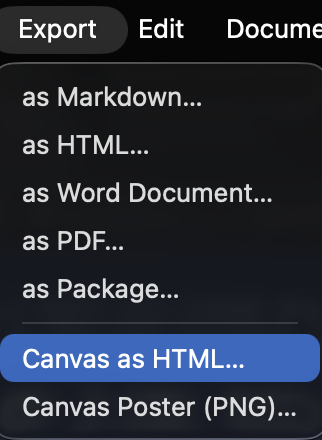
Canvas Poster (PNG)… renders the zoomed-out canvas — pages as sheets with their titles, media thumbnails, ink — as one image.
Export Options
Options appear only when they apply:
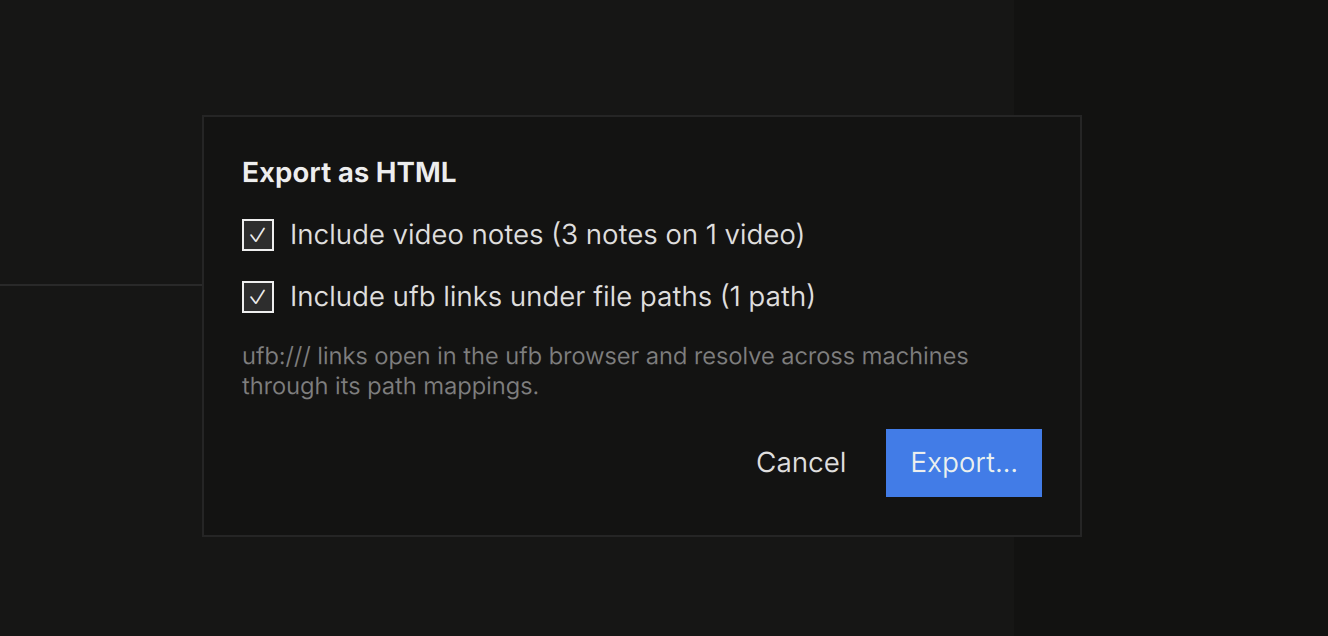
- Include video notes — QCView-style notes render under each video, marked-up frames included.
- Include ufb links (off by default, remembered) — adds a clickable
ufb:///deep link under every file path in the export. Anyone with ufb installed clicks the link and lands on that file in their browser — cross-platform, resolved through ufb’s own path mappings.
References
Videos, PDFs, and file attachments export as a poster image plus a reference card — name, full path, and metadata — so a reader can find the real file:
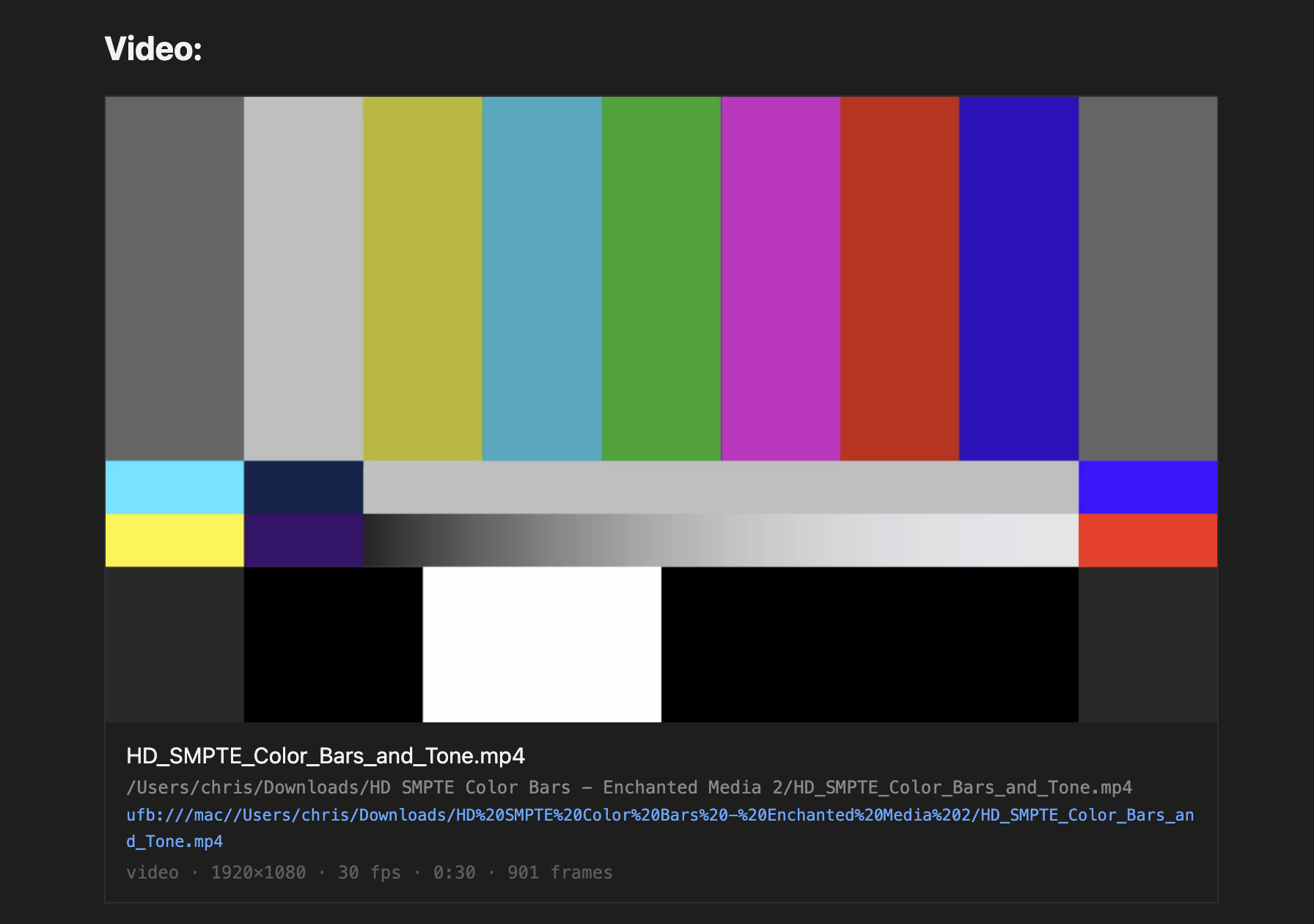
Images always collect into the export (sandboxed viewers can’t read absolute paths); videos and other large files stay pointers by design.