Import
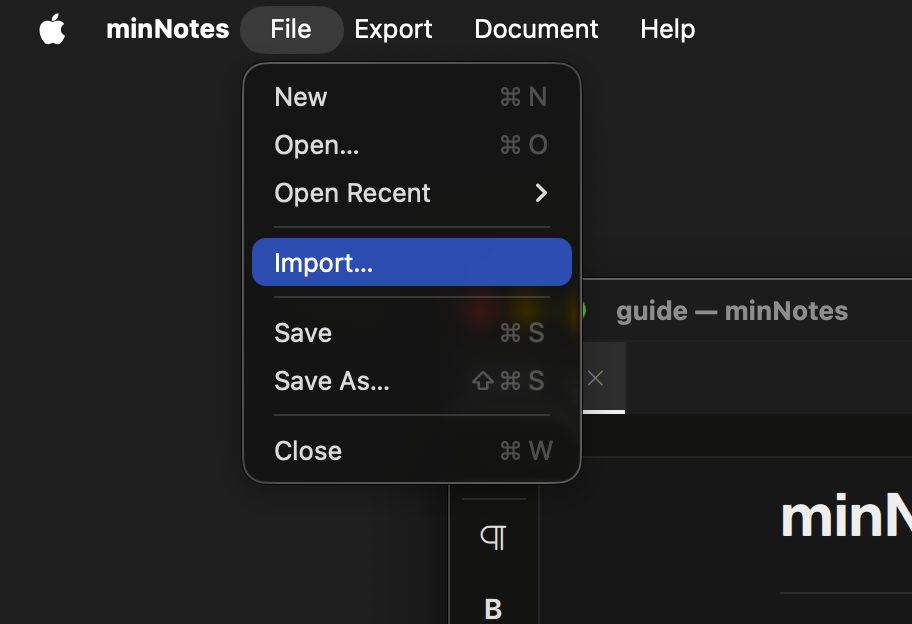
File ▸ Import… — or drop a file on the welcome screen, on the canvas, or into a page — brings existing material in. From the menu or the welcome screen a file becomes a fresh untitled file (nothing touches disk until you save); dropped on the canvas it becomes a new page where you dropped it; dropped into a page it lands in that page.
| Format | Notes |
|---|---|
Markdown (.md) | GFM tables, fenced code with language, tri-state tasks |
Plain text (.txt) | Markdown-style prefixes convert on the way in |
| CSV / TSV | Becomes a table; first row is the header |
| HTML | Headings, lists, formatting, tables, images |
Word (.docx) | Round-trips minNotes’ own exports (Word review comments are not imported) |
Excel (.xlsx) | Sheets become tables — including images in cells (both the floating and place-in-cell kinds) |
OpenDocument (.ods / .odt) | Calc sheets → tables; Writer docs with styles, lists, images |
| Source code | 37 languages → one syntax-highlighted code block |
| RTF | macOS only |
Evernote (.enex) | One page per note, laid out in a grid on the canvas; images and attachments come along |
Notion export (.zip) | Every page becomes a page; databases become tables |
minNotes (.mnd / .mnpkg) | Dropped on the canvas: its pages copy in, arranged as they were |
Spreadsheet padding (empty rows and columns out to the sheet edge) is trimmed on the way in, and images referenced by imported documents are copied into the file’s media folder.
To bring an imported file into an existing page, open both and use File ▸ Merge File Into This Page… — see Files & Pages.