Editing
A page is a list of blocks. Press Enter to start a new block, Backspace at the start of an empty block to merge it up. Down the right side runs the block rail: a handle for every block. Click a handle to select its block, drag it to move the block (a table row’s handle carries the row; the header row’s carries the table); an accent line shows where it will land.
The Toolbar
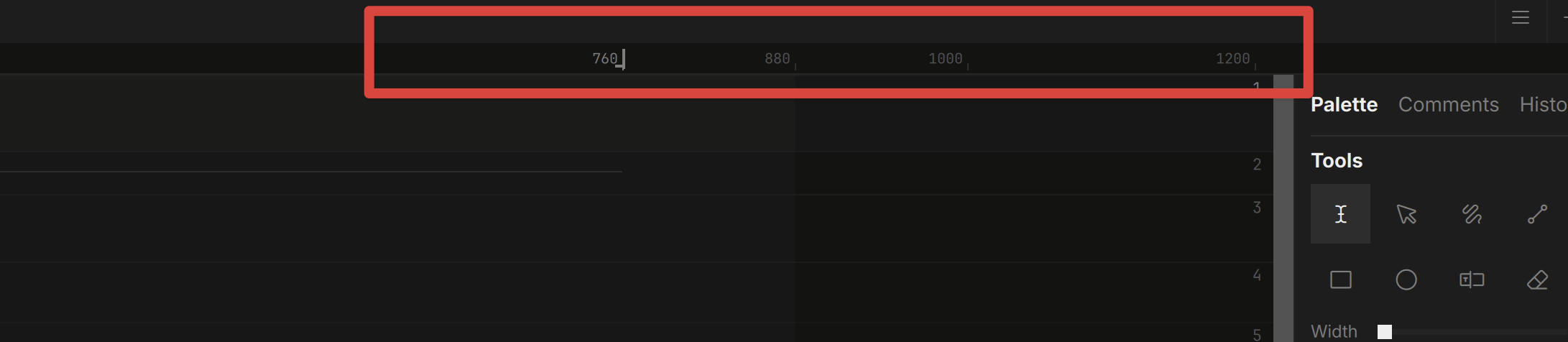
The toolbar changes with where you are. In a page it holds the inline actions — paragraph, bold, italic, highlight, code, strikethrough, underline, link, clear formatting — and two flyouts: Heading (the icon shows the caret’s level) and Insert block (quote, bullet, numbered and task lists, a choice chip, a code block, a table, a divider).
Its right end is the same everywhere: the three colour clips, the pen width, undo and redo, the zoom badge, and the Inspector toggle.
Markdown-Style Triggers
Type these at the start of a block and it converts as you go:
| Type this | Becomes |
|---|---|
# … ###### | Heading 1–6 |
> | Quote |
- , * , + | Bullet list item |
- [ ] / - [/] / - [x] | Task (to-do / doing / done) |
1. (any number) | Numbered list item |
``` or ```lang then Enter | Code block (optionally for a language) |
--- / *** / ___ then Enter | Divider |
List items nest with Tab / Shift+Tab.
Every code block carries two small chips in its top-right corner: Copy, which puts the block’s text on the clipboard, and the language chip — click it to pick the syntax highlighting from the full language list (type to filter). The ```lang fence tag still works if you prefer typing it. Long lines wrap at the page like any other text, so a command is never cut off; exported HTML pages wrap the same way and carry the same Copy button.
The Page
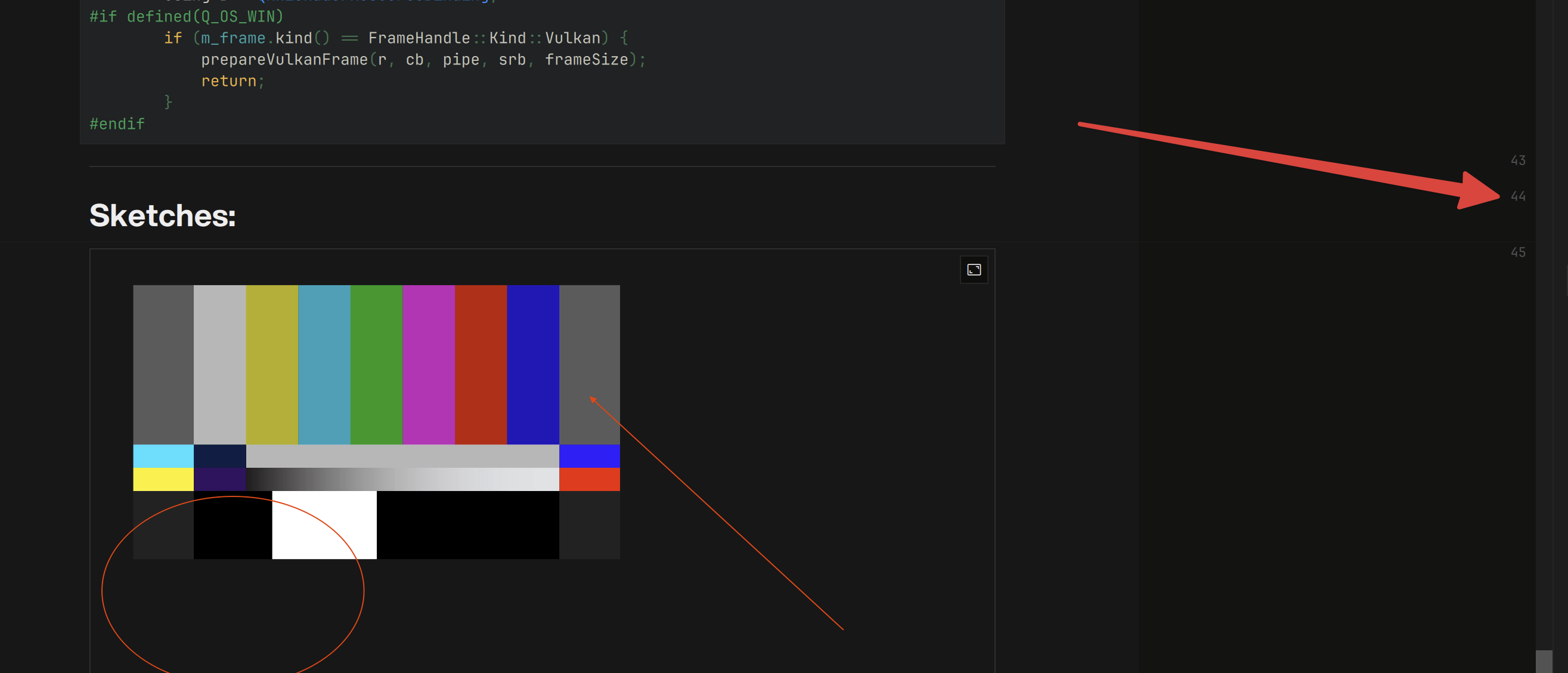
A page is as wide as its window and reflows as the window changes. Headings are set light, body copy a little heavier, all in one sans. For a reading measure instead, turn off View ▸ Full Width (⌘1 toggles it) and the text caps at the measure you pick there — 640, 760 or 880 — centred in the window. These are view settings; they change nothing in the file.
A table wider than the page runs past its right edge and the page scrolls sideways; text never squeezes.
Zoom the view with ⌘+ / ⌘−, ⌘0 for 100%, ⌘-wheel or a trackpad pinch to zoom about the pointer, or the zoom badge’s slider. The keys always act on what you are looking at: the page, a PDF, or the canvas. Zoom is a view setting for the page and is not saved with it. To pan a zoomed page, drag with the middle mouse button.
Side by Side
A split row sets blocks side by side in lanes. Each lane is a short stack of ordinary blocks — paragraphs, lists, images — and the row is as tall as its tallest lane.
- Make one: right-click a block and choose Split into columns, or
⌘-drag from the left or right edge of a block (a plain drag at a table cell’s edge resizes the column). Dropping a dragged block or a file on a block’s side edge puts it in a new lane beside that block. - Resize: drag the gap between two lanes. It snaps at ¼, ⅓, ½, ⅔ and ¾; dividers that line up with the rows above and below move together — hold
⌥to move just this row’s. - Move around:
←/→walk the lanes in reading order,↑/↓stay in a lane until its top or bottom;Tab/⇧Tabjump to the next or previous lane. - Tidy up: the block menu offers Align lanes, Merge with the row below, and Delete lane. Empty a lane and its space goes back to its neighbour; a row left with one lane becomes plain blocks again.
Tables always span the page, so a table never lands inside a lane — paste one (or a whole split row) with the caret in a lane and it goes in just below the row.
Inline Formatting
Select text and use a shortcut or the toolbar — bold, italic, code, underline, strikethrough, links (⌘K). Clear formatting on a selection with ⌘\.
Colours
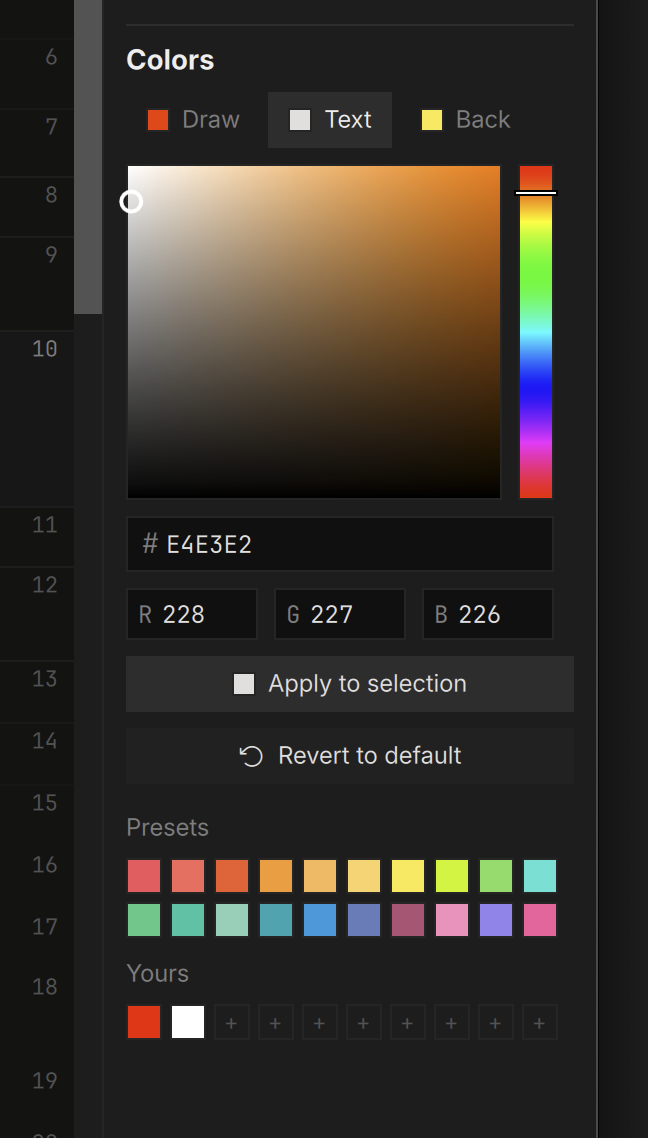
The three clips at the right end of the toolbar are the text, highlight and pen colors. Click one to open the palette for that layer: pick a swatch with text selected to color it; with nothing selected the color arms for what you type next. Apply colors the current selection with the armed color, Revert clears back to the default, and the bottom row holds your own saved swatches. The same palette colors table selections — whole rows and columns included (see Tables).
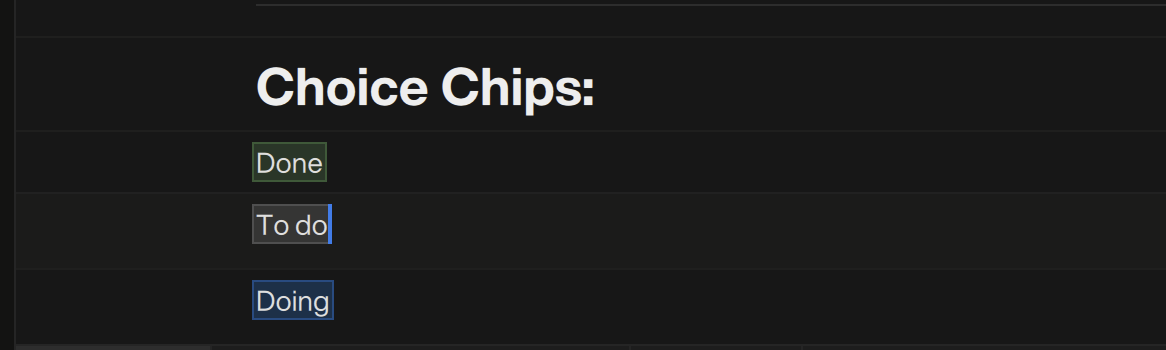
Choice Chips
⌥⌘C inserts an inline choice chip — To do / Doing / Done — anywhere in text, including inside table cells. Click the chip to change its state; the chip travels with the text through exports.
Undo & History
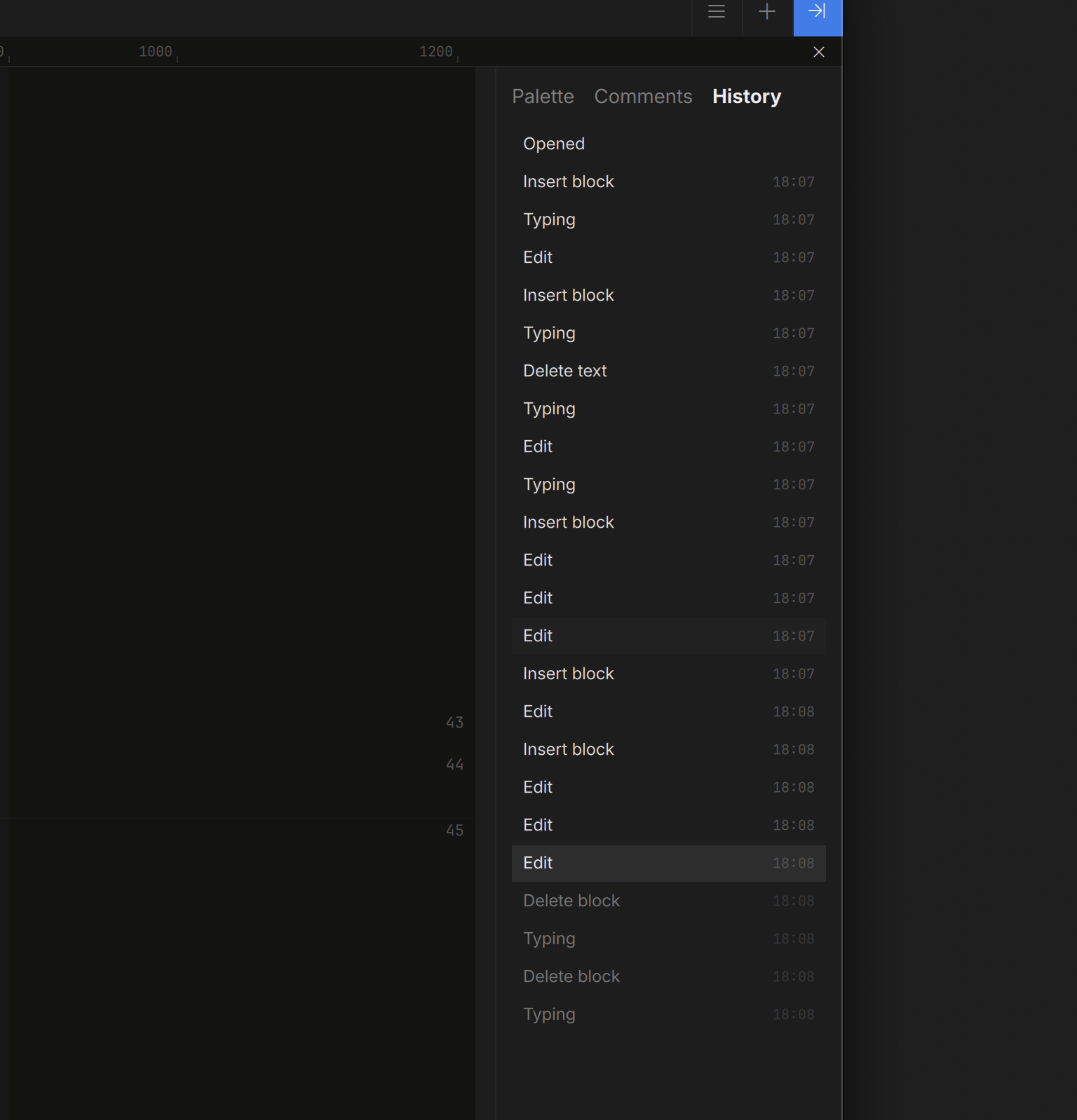
Every gesture is one undo step — a bulk table edit, a whole merge, a run of image-resize nudges all take a single ⌘Z. Each page has its own history and so does the canvas; ⌘Z works on whichever you are in. The Inspector’s History section shows the timeline: click any entry to time-travel to that state (and forward again).