Drawing & Video
Drawing lives on the canvas. The canvas toolbar holds the pen, line, arrow, rectangle, oval, text box, plain text and eraser tools, each on a single key; strokes are canvas elements you can select, move, restyle and reorder like anything else. The Canvas page has the tools and keys.
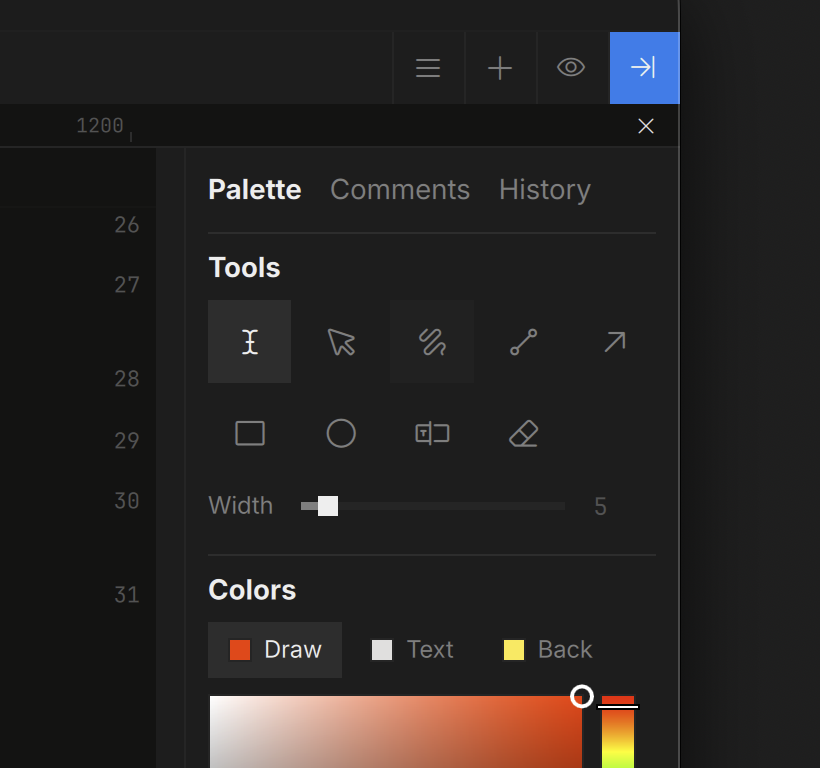
Pick a tool and draw; Esc drops back to the pointer. Zoom in for detail — strokes keep their width in canvas units, so a fine line at 200% is still fine at 50%.
Coming from 1.x: ink that was pinned to text or page margins now sits on the canvas beside the page it belonged to, and sketch blocks become ink and chips beside the page. Nothing is lost in the conversion; it is simply no longer attached to the text.
PDF Pages
A PDF opens full-window from its card, its inline block, or the path bar. Pages scroll, zoom with the usual keys, and the frame segment switches between the page’s PDFs.
The toolbar shows the pen tools there: freehand, rectangle, oval, line, arrow and an eraser (P R O L A E; V is the pointer again, Esc drops the tool). A stroke belongs to the page you drew it on — it scrolls and zooms with that page, shows on the inline preview and the canvas card, and exports as a marked-up page image. The eraser removes the stroke under the pointer; ⌘Z undoes the last one. Hold Space to scroll with the hand while a tool is armed. The PDF file itself is never touched.
Drawing on the canvas over a PDF card is a different thing: that ink is canvas ink, floating above the card, and stays put when the PDF pages.
Video
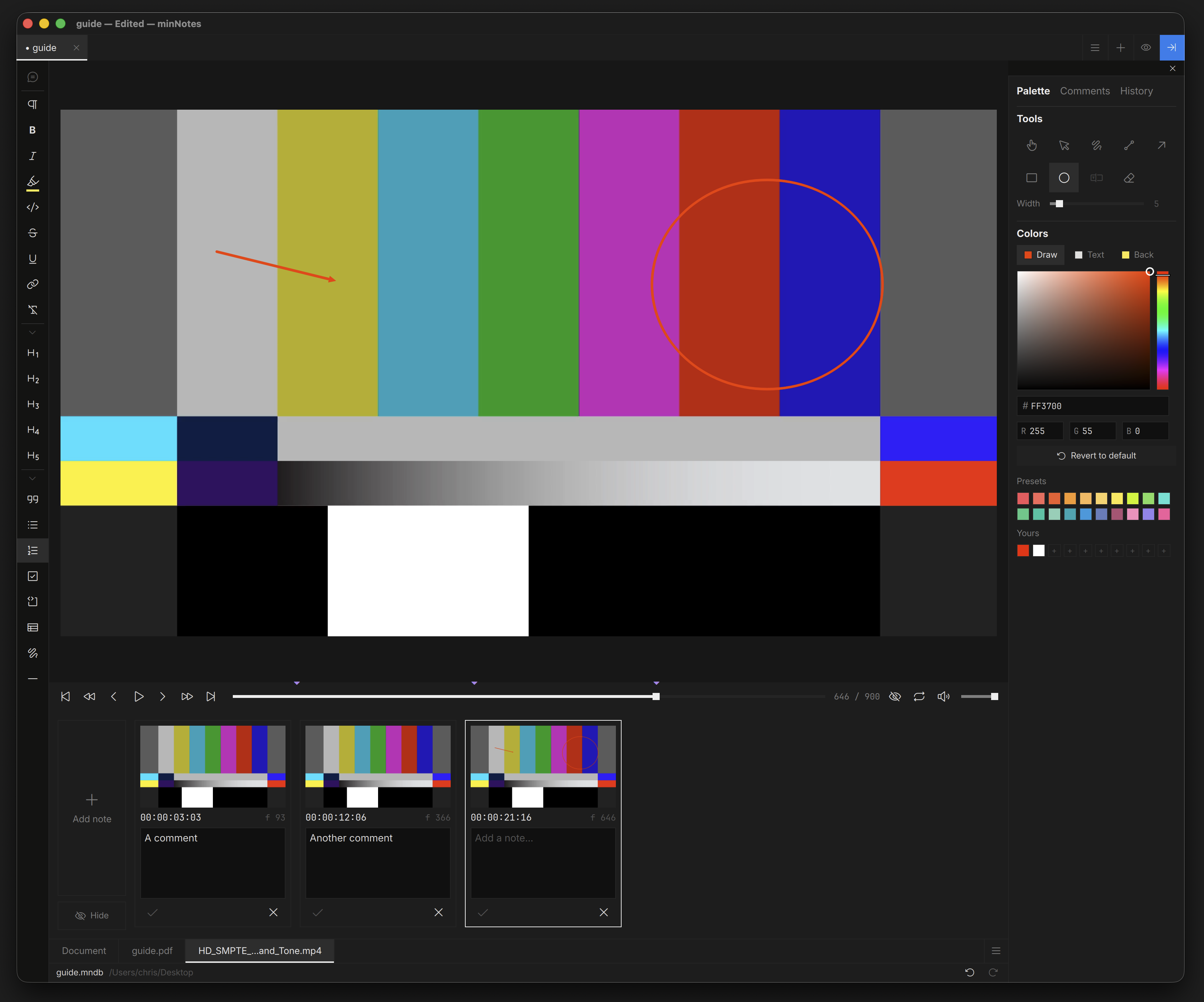
Open a video full-window for the review studio: scrub with skim audio, step frames, and draw on any frame. Annotations save to a .qcview sidecar next to the media — fully interchangeable with QCView: notes made in either app open in the other. The same transport works on an inline video block that has the caret and on a selected video card on the canvas.
| Action | Shortcut |
|---|---|
| Play / pause | Space, K, W or S |
| Step a frame back / forward | ← / → (or Q / E) |
| Rewind / fast-forward (hold) | J / L (or A / D) |
| Start / end | Home / End |
| Cycle review speed (0.5×–2×) | R |
| Reset speed | ⇧R |
| Loop | V |
| Mute · volume | M · ↑ / ↓ |
Every counter shows timecode; click it to flip all players to frames.
A clip’s notes can come into the document as blocks: Insert notes below on an inline video’s block menu writes them under the video, each note a marked-up frame with its timecode and text; Notes as a page below on a canvas video card writes them to a new page under the card.
Streams
Notes QCView takes on a live feed (a Premiere Pro or After Effects sequence over QCBridge, or an SRT stream) have no clip behind them: they live in the QCView project, in .qcview/streams/<stream>/, each with the frame it captured and the time it was taken. QCView’s Open in minNotes hands that folder here; so does opening the folder (or its notes.json) with minNotes, or dropping the folder on a canvas and choosing Open as stream from its card.
The first open creates a file beside the notes with every note already in it — the captured frame as an image block carrying QCView’s strokes, then a line with the capture time, the host’s timecode when the feed carries one, and the note’s text. The file is yours from there: edit, reorder, export. The stream chip in the toolbar keeps the folder in view; as QCView adds notes to the stream, Insert notes brings the folder’s notes in again as blocks at the end of the page.